
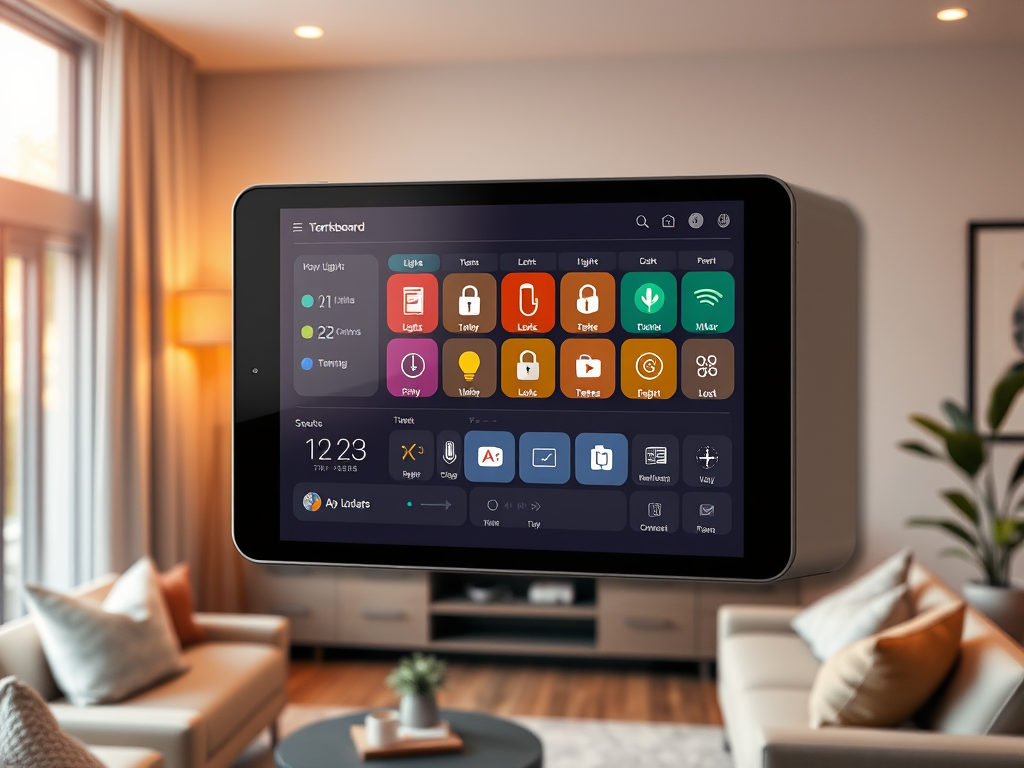
That Fire HD 10 sitting in your junk drawer isn’t worthless. With Home Assistant and about a weekend of tinkering, you can turn it into a wall-mounted smart home dashboard that actually gets used every day. I’m talking lights, locks, thermostats, security camera snapshots, all visible at a glance without saying a word to a voice assistant. Total cost can land under $150 if you already own the tablet. Here’s exactly how to do it.
Why Bother With a Wall Tablet Dashboard?
Short answer: it solves the “Hey, what’s the front door lock status?” problem without anyone fumbling through an app or shouting at a speaker.
In my testing, the single biggest win is visibility. Big icons, clear room labels, and a persistent screen mean even guests can figure it out in five seconds flat. You’re not training anyone on voice command syntax or handing over your phone. It just works.
There’s also a practical offline argument here. Home Assistant runs locally, so when your ISP has a bad day, your dashboard still shows you whether the garage door is open. Cloud-dependent dashboards don’t do that. And if you’re pulling an old tablet off the shelf instead of buying new hardware, you’re keeping a piece of electronics out of a landfill. That’s a real bonus, not just marketing language.
What You’ll Need (Full Gear List)
You don’t need to spend big. Here’s the actual shopping list:
- Tablet: Amazon Fire HD 10 (2019 or newer), Lenovo Tab M11, or Walmart ONN 10-inch
- Dashboard platform: Home Assistant Green box (plug-and-play) or Raspberry Pi 5 (more flexible)
- Kiosk app: Fully Kiosk Browser for Android. It locks the tablet to one screen and handles auto-wake.
- Power cable: A 90-degree USB-C cable keeps things tidy against the wall. Pair it with a basic 10W charger.
- Mount: Magnetic frame, 3D-printed bezel, or a swing arm depending on your wall situation (more on this below)
- Optional: A Matter-enabled smart plug to automate charging cycles and protect battery health long-term
All-in budget is roughly $120 to $150 if you’re buying a used Fire HD 10 and a Home Assistant Green box. A Raspberry Pi 5 route runs slightly cheaper on hardware but requires more setup time.
Best Budget Tablets for This Project in 2025
Amazon Fire HD 10
This is the one I’d recommend to most people. The used market is flooded with them, cases are everywhere, and the 10.1-inch 1080p screen looks sharp on a wall. The catch: you’ll need to sideload Google Play Services to get Fully Kiosk Browser installed properly. It takes about 20 minutes and there are solid guides for it. Not hard, just a step you can’t skip.
Lenovo Tab M11
If you want to buy new and not worry about software support dropping in two years, the M11 is worth the extra spend. It runs stock Android 14, has 4GB of RAM, and the 2K screen looks noticeably better than the Fire HD at the same viewing distance. The bezels are a bit chunky, but for a wall-mounted device nobody is holding, that really doesn’t matter.
Walmart ONN 10-inch
At $99 new, this one makes sense for a rental property or a kid’s bedroom where screen damage is a real possibility. The resolution is lower and the processor is slower, but for a Home Assistant dashboard showing a handful of cards, it’s more than capable. I’d skip it for a main living area and go straight to the Fire HD 10.
Choosing Your Dashboard Platform
Home Assistant is the right call for most people doing this project. It has over 2,600 device integrations, full Matter support, and the Lovelace UI is genuinely good-looking once you spend an hour on it. Everything runs on your local network, which means faster response times and no subscription fees.
SharpTools is a reasonable alternative if you want a simpler cloud-based setup with less configuration overhead. Hubitat Dashboard is worth considering if you’re already running a Hubitat hub and don’t want to migrate. But if you’re starting fresh, Home Assistant gives you the most control and the best long-term flexibility.
Step-by-Step Setup
Step 1: Get Home Assistant Running
If you’re using a Home Assistant Green box, plug it in, connect it to your router, and visit http://homeassistant.local:8123 from any browser on your network. That’s genuinely it for hardware setup. For Raspberry Pi 5, flash the haos_rpi5.img.xz image to a micro-SD card using Balena Etcher, insert it, and then hit the same URL. Follow the onboarding wizard to add your devices.
Step 2: Lock the Tablet Into Kiosk Mode
Factory reset the tablet first. Then enable Developer Options by tapping the build number seven times in Settings. Sideload the Fully Kiosk Browser APK, set your Home Assistant dashboard URL as the start page, and turn on “Autostart on Boot.” The tablet will launch directly into your dashboard every time it powers on, and users can’t accidentally exit to the home screen.
Step 3: Design Your Dashboard
In Home Assistant, use Mushroom Cards for clean modern icons. Organize everything by area, Kitchen, Hallway, Front Door, so someone scanning the screen can find what they need instantly. Add a weather widget showing current conditions and a camera snapshot if you have a doorbell cam. That combination covers 90% of what anyone actually checks on a day-to-day basis.
Step 4: Automate Screen Wake and Battery Health
Set up a Zigbee motion sensor near the tablet and create a Home Assistant automation to wake the screen when someone walks by. Nobody wants to tap a dark screen to see if the door is locked. For battery health, connect a Matter-enabled smart plug and use an automation to stop charging when the battery hits 80% and resume below 40%. Keeping lithium cells out of constant 100% charge genuinely extends their lifespan by months.
DIY Mounting Options
Nano-tape and Magnetic Photo Frame
Best option for renters. Zero screws, fully reversible, and a magnetic frame lets you pull the tablet off for charging or updates without fighting with adhesive every time.
3D-Printed Bezel
If you have access to a printer, a custom bezel makes the install look intentional rather than improvised. Print it in a color that matches your wall trim, route the cable through it, and it looks like it came with the house. STL files for popular tablets are easy to find on Printables.
Swing Arm Under Cabinet
This is my favorite for kitchens. The tablet folds flush when you don’t need it and swings out when you’re cooking and need to check a recipe or adjust the thermostat without touching your phone with messy hands.
PoE Wall Box Insert
Single cable running in the wall for both power and data. This is the cleanest possible install if you’re comfortable running a cable through drywall. Requires a PoE splitter to break out USB power for the tablet.
Security and Privacy
Create a dedicated read-only Home Assistant user for the dashboard. That way, if someone pokes around on the screen, they can view device states but can’t change settings or access other users’ data. Enable SSL through Let’s Encrypt or a Cloudflare Tunnel if you’re accessing the dashboard remotely. And if you’re showing camera feeds, configure the screen saver to hide them after a minute of inactivity. You don’t want a live camera view visible to anyone walking past the front door.
Common Problems and Fixes
Wi-Fi Keeps Dropping
Lock the tablet to the 2.4 GHz band in your router settings. The longer range and wall penetration make it more stable for a fixed wall-mounted device than 5 GHz. If signal is still weak, a mesh node in the same room solves it permanently.
Ghost Touches on the Screen
Usually a brightness or calibration issue. Lower the screen brightness and turn off palm rejection if the tablet has it enabled. In a few cases I’ve seen cheap USB-C cables cause interference, so try swapping the cable before doing anything more involved.
Screen Burn-In
Don’t leave a static dashboard at full brightness 24 hours a day. Set Fully Kiosk Browser to dim the screen to near-zero after 10 minutes of inactivity and rotate dashboard views slightly if you can. Most modern LCD panels are reasonably resistant, but OLED tablets need this more urgently.
What Does This Actually Cost?
Used Fire HD 10: around $40 to $60. Home Assistant Green box: $99. Fully Kiosk Browser license: $7 one-time. Mount hardware: $10 to $25 depending on which approach you take. Smart plug for battery management: $15 to $20 optional but worth it.
Total realistic budget with a used tablet: $130 to $160. Time investment: one solid Saturday afternoon for setup, another hour or two refining the dashboard layout over the following week. It’s genuinely a weekend project, not a month-long commitment.
Quick Takeaways
- A used Fire HD 10 plus Home Assistant Green is the fastest path to a working dashboard
- Fully Kiosk Browser is not optional. It’s what keeps the tablet locked to your dashboard reliably
- Automate battery charging from day one. It protects the hardware and saves you from a dead screen in six months
- Organize by room area, not device type. That’s what makes it usable for everyone in the house, not just you
- The Lenovo M11 is worth the extra money if you want stock Android and longer software support
Did AI write this…