Your router has a built-in admin panel that most people never open. That’s a genuine shame, because 15 minutes inside those settings can fix sluggish speeds, cut interference from your neighbor’s competing WiFi, and kick off whoever has been freeloading on your network for the past six months. You don’t need a networking degree. You just need to know where to look.
Step 1: Find Your Router’s IP Address
Your router’s admin panel lives at a specific IP address, usually something like 192.168.1.1 or 192.168.0.1. Think of it as a private website that only exists inside your home network. Nobody outside can reach it. Here’s how to find the exact address on your machine.
On Windows
- Press Windows + R on your keyboard
- Type cmd and hit Enter to open Command Prompt
- Type ipconfig and press Enter
- Scroll through the results and look for Default Gateway
- That number next to it, something like 192.168.1.1, is your router’s address
On Mac
- Open System Preferences, then click Network
- Select your active connection on the left (WiFi or Ethernet)
- Click Advanced, then go to the TCP/IP tab
- The number next to Router is what you need
Write that number down. You’ll type it directly into your browser’s address bar in the next step.
In my testing, the address is 192.168.1.1 on most TP-Link and NETGEAR routers straight out of the box. ASUS tends to use 192.168.1.1 as well, but some older Linksys models default to 192.168.0.1. It varies, so look it up if neither works.
Step 2: Log In to the Admin Panel
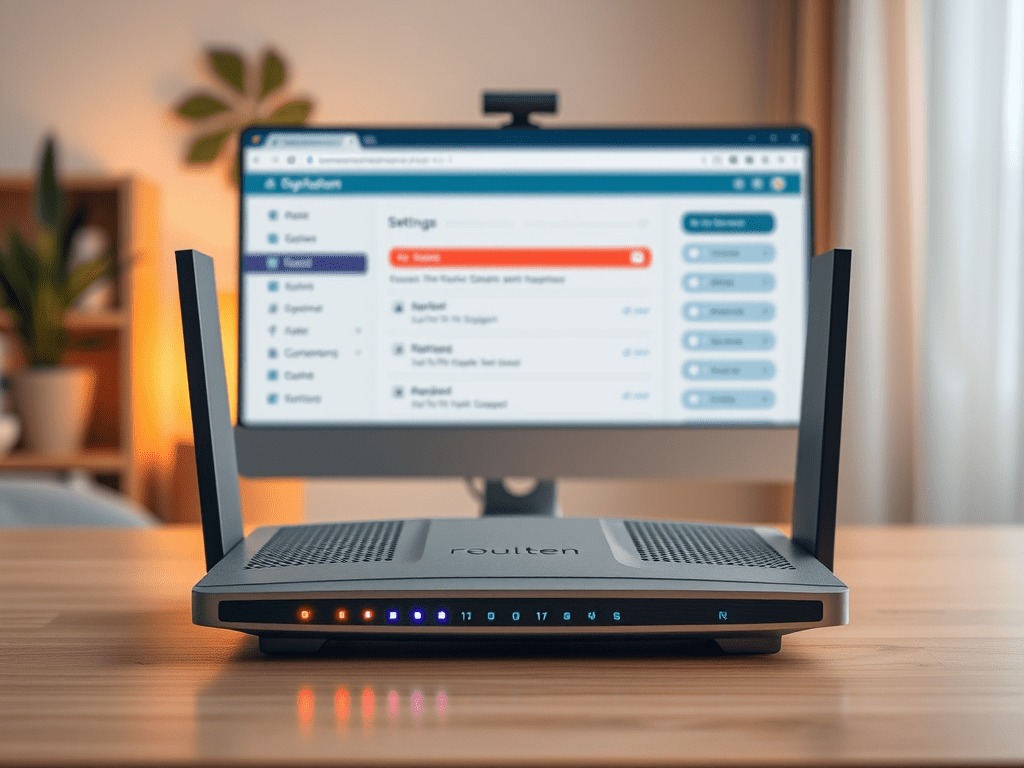
Open any browser. Chrome, Safari, Edge, it genuinely doesn’t matter. Type your IP address into the address bar at the top of the screen, not the search box, and hit Enter. A login page should appear within a few seconds.
Short answer on default credentials: most routers ship with admin / admin or admin / password. Try those first. If neither works, flip the router over and check the label on the bottom. Manufacturers print the default login right there, and it takes about five seconds to find.
You can also search your router’s model number plus “default login” and you’ll have the answer in under a minute. Routerpasswords.com keeps a solid database if Google isn’t turning up anything useful.
One practical tip before you start: if you can, plug a laptop directly into the router with an Ethernet cable. It’s more stable than WiFi, and if you accidentally change a wireless setting mid-session, you won’t get booted off your own connection halfway through. I’ve made that mistake. It’s annoying.
Step 3: The Settings Worth Actually Changing
Once you’re logged in, the dashboard can look intimidating. Lots of tabs, lots of jargon. Ignore most of it. For a typical home setup, these are the four areas that actually make a difference.
1. Change Your WiFi Name (SSID)
Look for a section called Wireless or WiFi Settings. The SSID field is just the name your network broadcasts to nearby devices. Change it to something you’ll recognize. This doesn’t affect speed or security on its own, but it does make it easy to confirm you’re connecting to your own network and not your neighbor’s router with the same default name.
I’d avoid putting your address or last name in the network name. There’s no reason to advertise that information to anyone walking past your house with a phone.
2. Update Your WiFi Password
If you’ve never changed this, your network is probably still running on whatever random string came printed on the router label. That’s not always insecure, but setting your own password is worth the two minutes it takes.
Use at least 12 characters and mix in numbers and symbols. More importantly, check what security type is selected. You want WPA2 or WPA3. Avoid WEP entirely. It’s outdated and broken. A determined attacker can crack WEP in roughly 10 seconds with free software. It offers basically no real protection.
3. Switch Your WiFi Channel
This one actually solves a real, frustrating problem. If you live in an apartment building or a dense neighborhood, there are probably six or seven routers within range of your living room, all competing on the same frequencies. That interference kills speeds even when your signal looks strong.
Find Wireless Settings and look for a Channel dropdown. For the 2.4GHz band, channels 1, 6, and 11 are the only non-overlapping options. Pick whichever one your neighbors aren’t already crowding. A free app like WiFi Analyzer on Android will show you exactly which channels are congested in your area. On the 5GHz band you have more breathing room, but the same logic applies.
In my testing, switching from a congested channel 6 to channel 11 in a dense apartment building improved consistent download speeds by around 20 to 30 percent without touching any other setting. It’s one of the highest-impact changes you can make.
4. Change Your Admin Password
This is the one most people skip, and it’s arguably the most important. That default admin/admin login isn’t just printed on your router. It’s published on the internet for every router model ever made. Anyone who gets onto your network can pull up your admin panel and lock you out of your own router.
Look for an Administration or System tab and update the admin password to something only you know. Treat it like a bank password, not a WiFi password. Write it down somewhere physical if you need to. You don’t log in often, but when you need access, you really need access.
A Few Things to Leave Alone
While you’re in there, you’ll see options for port forwarding, DMZ settings, DNS configuration, and firewall rules. Unless you specifically know you need to change something in those sections, leave them alone. The defaults are fine for most home users. Changing firewall rules incorrectly can expose your network in ways that are harder to diagnose than the problems you started with.
Router settings aren’t fragile, but they’re also not the place to click around and experiment blindly. Stick to the four changes above, save your settings after each one, and you’ll be in noticeably better shape than you were before you started.