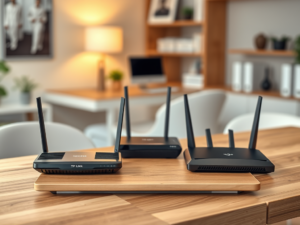
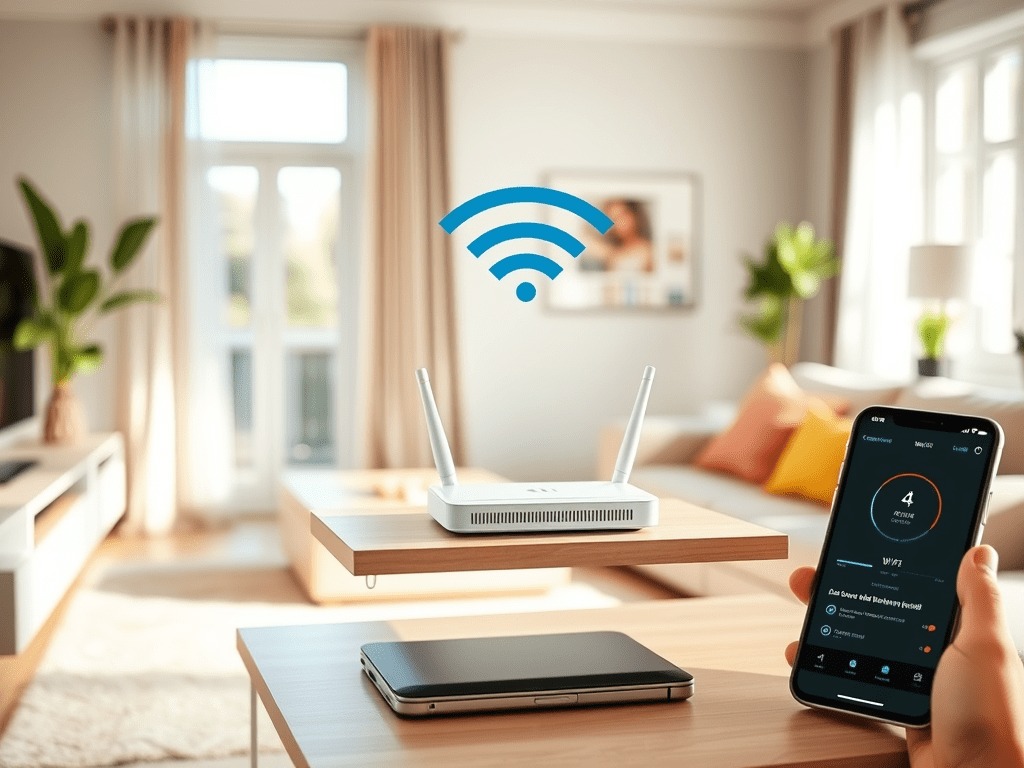
Bad WiFi is one of those problems that’s easy to live with and surprisingly easy to fix. Most people assume slow speeds or dead zones mean they need a new router or a call to their ISP. Usually, that’s not true. In my testing, a few simple changes, router placement, band selection, a firmware update, can make a noticeable difference in under 30 minutes. No networking degree required. Here are 10 fixes that actually work.
1. Move Your Router to a Central Spot
This is the single biggest free upgrade you can make. WiFi signals radiate outward in all directions, so if your router is sitting in a corner office at the back of the house, half those signals are blasting into your neighbor’s yard. Move it to the most central location you can manage.
Keep it off the floor. Get it up on a shelf or mount it on a wall. Walls, floors, and large metal appliances all absorb signal. A cabinet is one of the worst places for a router. So is the kitchen counter next to the microwave, which operates on the same 2.4 GHz frequency and can actively interfere with your connection.
Short answer: high, central, open air. That’s the target.
2. Restart Your Router Once a Week
Your router is a small computer running 24/7. Like any computer, it accumulates memory junk over time. Speeds creep down. Connections get flaky. A restart clears all of that out.
Unplug it, wait 30 seconds, plug it back in. That’s the whole tip. If you want to automate it, a cheap smart plug with a weekly schedule does the job without you thinking about it. I’d set it for 3am on a Sunday. Nobody’s streaming at 3am on a Sunday.
3. Switch to the 5 GHz Band
Most modern routers broadcast two networks: 2.4 GHz and 5 GHz. A lot of people’s phones and laptops default to 2.4 GHz because it has longer range. The problem is that 2.4 GHz is absolutely crowded. Every neighbor’s router, every baby monitor, every wireless keyboard in a half-mile radius is competing on that same band.
If your device is within 30 to 40 feet of the router, connect to the 5 GHz network instead. It’s faster and far less congested. Check your router’s app or settings page to confirm both bands are active, then look for the 5 GHz network name in your device’s WiFi list and connect to it.
4. Change Your WiFi Channel
Think of WiFi channels like lanes on a highway. If everyone in your building is on channel 6, that lane is a parking lot. Switching to a less busy channel can improve speeds noticeably, especially in apartments or dense neighborhoods.
Download a free WiFi analyzer app (WiFi Analyzer on Android works well) and look at which channels your neighbors are using. Then log into your router’s admin dashboard and pick a channel that’s less crowded. For 2.4 GHz, channels 1, 6, and 11 are the non-overlapping options. Pick whichever one has the least competition.
5. Update Your Router’s Firmware
Firmware updates fix bugs, patch security holes, and sometimes include real performance improvements. Most people never do this. It takes about five minutes.
Log into your router’s admin page. This is usually done by typing 192.168.1.1 or 192.168.0.1 into your browser’s address bar. Look for a section called Firmware Update or Software Update. On newer routers, there’s often a button that checks for updates automatically. Run it, let it install, done.
6. Add a WiFi Extender or Upgrade to Mesh
If you’ve got dead zones in the bedroom, garage, or back porch, no amount of channel-tweaking is going to help. You need more coverage. Two solid options here depending on your home size and budget.
TP-Link AC1200 WiFi Extender
This is the pick for apartments or smaller homes with one or two problem spots. It’s compact, dual-band, and plugs directly into an outlet. Simple setup, low cost. I’d skip the cheapest single-band extenders on Amazon and go straight to this one. The dual-band support makes a real difference.
eero 6+ Mesh System
For homes over 1,500 square feet or anyone tired of managing extenders, a mesh system is the cleaner solution. The eero 6+ supports up to 1 Gbps and handles a large number of devices without slowing down. The app-based setup is genuinely easy. Good pick for families with a lot of connected devices.
Netgear Orbi RBK752
If you’ve got a large home, multiple floors, or a thick-walled older construction, the Orbi RBK752 is the strongest performer here. Tri-band support means the nodes can communicate with each other on a dedicated backhaul channel while still serving your devices at full speed. It costs more, but for a 3,000-plus square foot home, it earns its price.
7. Cut Down Interference from Other Devices
Baby monitors, older cordless phones, and Bluetooth speakers can all interfere with your WiFi signal, particularly on the 2.4 GHz band. If your router has to sit near any of these, the 5 GHz band becomes even more important. Turn off devices you’re not using. It’s a small thing, but in a cluttered living room with multiple wireless gadgets, it adds up.
8. Lock Down Your Network
If your neighbors are using your WiFi, your speeds take a hit. It’s that simple. Make sure your network has a strong password. WPA3 is the current standard for security and performance. If your router supports it, use it. Don’t share your main network password freely. Set up a guest network for visitors instead, which most routers support through the admin dashboard.
9. Plug In Your TV and Gaming Console
This one gets overlooked constantly. Your smart TV, gaming console, and desktop PC don’t need to be on WiFi. An ethernet cable gives them faster, more stable speeds and removes them from your wireless network entirely. That frees up bandwidth for your phone, laptop, and everything else that actually needs to be wireless.
A basic Cat6 cable costs a few dollars on Amazon. If running a cable through the wall isn’t an option, a powerline adapter kit is a solid alternative that moves data over your home’s electrical wiring instead.
10. Run a Speed Test Before and After Each Change
Go to speedtest.net and run a test right now before you change anything. Write down the numbers. Then make one change at a time, test again, and compare. This is how you figure out what’s actually helping versus what’s just busywork.
In my testing, router placement and band selection together usually produce the biggest jump. Firmware updates and channel changes tend to be smaller but still measurable gains. Don’t skip the baseline test. It’s the only way to know what’s working.
Quick WiFi Checklist
- Router is placed high and in a central location
- Restarted within the last week
- Connected to 5 GHz band where possible
- Firmware is up to date
- WiFi channel has been checked and optimized
- No major interference sources sitting next to the router
- Extender or mesh system added if dead zones exist
- Network is password protected with WPA3
- Stationary devices are on ethernet
- Speed test completed to confirm improvements
FAQs
What’s the real difference between 2.4 GHz and 5 GHz?
Short answer: 2.4 GHz travels farther but is slower and more crowded. 5 GHz is faster and cleaner but doesn’t reach as far. If your device is within 30 to 40 feet of the router, use 5 GHz. Beyond that, 2.4 GHz is the more reliable option.
How do I know if I need a mesh system instead of a simple extender?
If your home is over 2,000 square feet, has multiple floors, or has more than one dead zone, a mesh system is worth the upgrade. Extenders can create awkward handoff issues when you move around the house. Mesh systems handle roaming much more cleanly.
What’s the best budget WiFi extender right now?
The TP-Link RE220 is the pick for pure budget shoppers. It’s reliable, easy to set up, and works with any router. Not the most powerful option available, but for a single dead zone in a small home, it does exactly what it promises.